
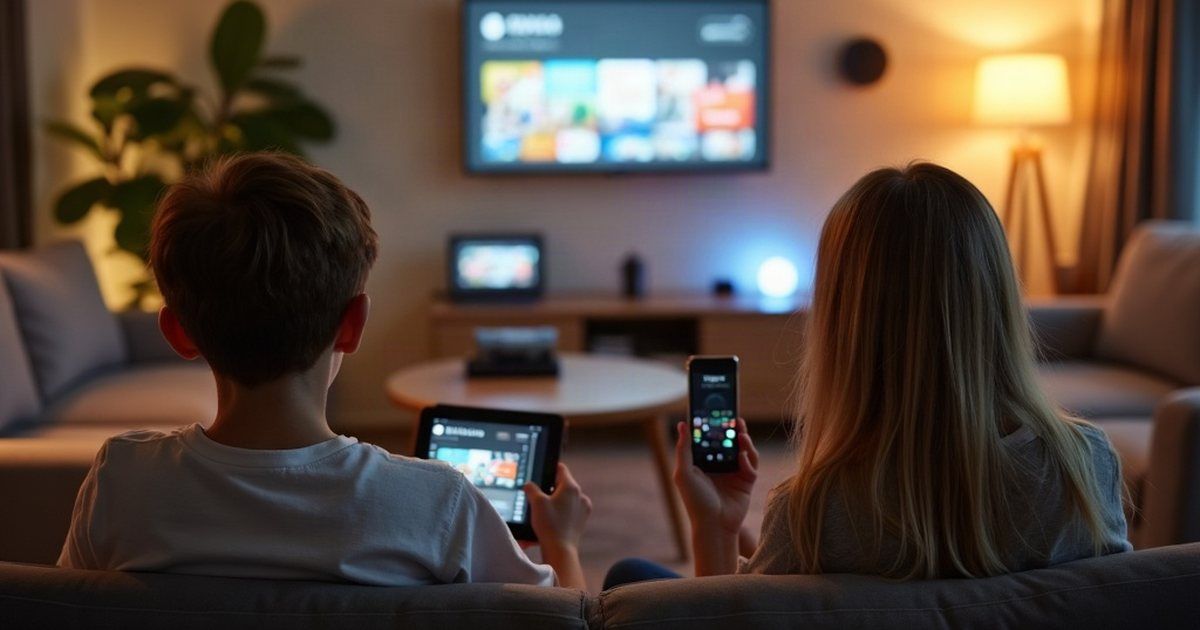
Most Australian households now have more connected devices than people. Phones, tablets, a laptop for school, a console, a smart TV, and something in the kitchen that listens. Kids move between all of them without thinking about it, which is exactly why locking down one device achieves so little.
If you’ve already set up a few controls, you’re ahead of most families. The gaps are usually in the places nobody thinks of as computers.
Multi-device family security sounds like something you buy. It isn’t. It means the rules you set on the phone also apply to the tablet, the console and the TV, and covering all of them is the part that takes an afternoon.
What changed in December 2025
Australia’s social media age restrictions took effect on 10 December 2025. Age-restricted platforms now have to take reasonable steps to stop Australians under 16 creating or keeping an account.
eSafety’s view is that Facebook, Instagram, Snapchat, Threads, TikTok, Twitch, X, YouTube, Kick and Reddit are age-restricted, among others. Online gaming and standalone messaging apps are excluded under the Rules, though messaging services with social media style features can be caught.
Two things follow for parents. Some accounts your kids had are gone, and the pressure moves to whatever isn’t covered, which right now means games and messaging. So the job hasn’t got smaller, it’s moved.
Parental controls, and what they can’t do
eSafety describes parental controls as software tools that let you block sites, apps and functions, filter content, limit who can contact your child, monitor use, and set time limits.
Their own advice is worth reading properly, because it’s blunt about the limits. Controls need to be set on every internet-connected device your child uses, including gaming consoles and smart TVs. They need reviewing regularly as kids get older and find the gaps. And they work best alongside supervision rather than instead of it.
The bit people miss: eSafety specifically mentions setting controls on devices your child uses while in someone else’s care. Grandparents, a friend’s house, a cousin’s iPad. That’s usually where the unfiltered internet lives.
Age changes what you’re actually solving. With toddlers it’s a walled garden and an accidental tap: one approved app, no access to the store, no way out into the open internet. With teenagers it’s contact, content and the pull towards whatever isn’t age-restricted. The same tools, set very differently, and the toddler settings are the ones people forget to loosen later.
Setting them up, by platform
Windows and Xbox. Microsoft Family Safety is set up at account.microsoft.com/family. A family organiser can add members, set screen time limits, and block apps and websites across Windows, Xbox, Edge and mobile devices. You can also add money to a child’s account with spending limits, which handles the in-game purchase problem better than arguing about it does.
iPhone, iPad and Mac. Apple’s controls sit inside Screen Time, but you have to set up Family Sharing first, add your child’s Apple Account to the family group, then turn on Content and Privacy Restrictions. Some controls are on by default depending on your region and your child’s age. Communication Limits and Communication Safety are separate settings and worth turning on.
Android and Chromebook. Google Family Link creates or supervises a child’s Google Account, manages which apps they can install, sets daily limits and a bedtime, and shows device location. Read the limitation before you rely on it: Google states that iPhones, iPads and computers other than Chromebooks cannot be supervised with Family Link. A mixed household needs more than one system.
None of these covers everything, which is the honest answer to why this takes an afternoon rather than ten minutes.
The layer most people skip: network security
Device controls travel with the device. Network controls catch everything on the Wi-Fi, including the smart TV and the console that has no parental app worth using.
On the router, look for whatever it calls device profiles or access schedules. The settings worth using are:
- A schedule that cuts internet to the kids’ devices at bedtime, so the argument happens once instead of nightly.
- Content filtering at the network level, either built into the router or by pointing the router at a filtering DNS service.
- A separate network for guests and for anything you don’t control, so a visiting device isn’t sitting alongside your work laptop.
Set the router’s own admin password to something only the adults know, and turn off remote management if you aren’t using it. A ten year old who can factor reset a router has removed every control in one go.
Parents often ask what network security equipment they need to buy for this. Usually none. The router already in the house is the equipment, and every setting above is free. The only reason to replace it is if it has no device profiles and no scheduling at all.
Secure the devices themselves
Controls are useless on a device anyone can pick up and use.
- A passcode or PIN on every device, not just the ones you care about.
- Automatic updates on. Most of what gets exploited on home devices is old and already patched.
- In-app purchases turned off, or moved behind a password. This is the single most common expensive surprise.
- Separate accounts for each child rather than one shared login, so the settings can match the age.
- Location sharing on for younger kids, with a conversation about why, not a discovery later.
Teach the habits, because the controls will fail
Every filter has a gap, and at some point your child will be on a device you don’t manage.
The things worth repeating until they’re boring: don’t give out your name, school or address; if something feels off, tell an adult and you won’t be in trouble; not everything online is real, including people; what you send doesn’t come back.
The “you won’t be in trouble” part matters most. Kids hide problems when they expect the device to be confiscated, and a hidden problem is the one that gets worse.
Supervise without surveilling
Keep devices in shared spaces where you can. Use shared accounts for the youngest kids. Ask what they’re watching and who they’re talking to as a normal conversation rather than an inspection.
There’s a real trade-off here and it’s worth naming. Heavy monitoring on a teenager tends to move the activity to a device or account you can’t see, which leaves you with less visibility than you started with. Tighter controls for younger kids, more conversation and fewer controls as they get older, is the pattern that holds up.
If you run a business from home
Keep the work devices out of the family pool. A separate login at minimum, a separate device if the work involves other people’s data. Client information on a laptop the kids also game on is a problem you don’t want to have to explain to a client.
One thing to do this weekend: list every device in the house that connects to the internet, including the TV and the console, then check which ones have no controls on them at all. That list is almost always longer than people expect, and it tells you where to start.
If you’d like a hand sorting out the home network, or the line between work and family devices, talk to us.